Quick Configuration
The easiest way to configure policies is through the web UI, which provides an interactive interface with dropdowns and form fields to reduce the manual effort of policy writing.
Open the UI and select the Agents tab to see all agents currently connected to the control server.
Note: An agent must actively connect to the control server before it can be discovered and have policies configured for it.
In this example, a LangChain agent has connected to the control server, as shown below:
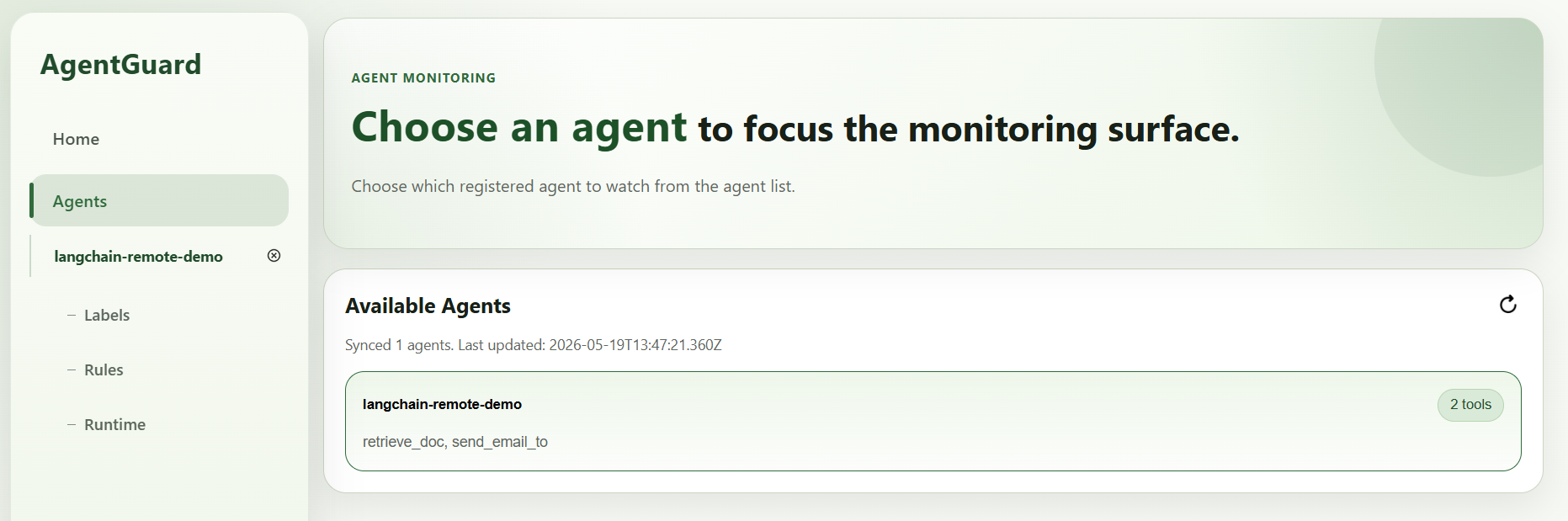
The system automatically detects that the agent has two built-in tools: retrieve_doc and send_email_to.
Click the Rules tab on the left to enter the policy configuration interface. We want to ensure that the document retrieved by retrieve_doc with id 0 (a simulated confidential file) can only be sent to admin@example.com.
First, enter a rule name. Since our policy is a typical chain-path rule, we add three placeholders in the PATH / TRACE field via the + button: A, ...?, and C. ...? means there can be zero or more tool calls between A and C. After adding them, it looks like this:
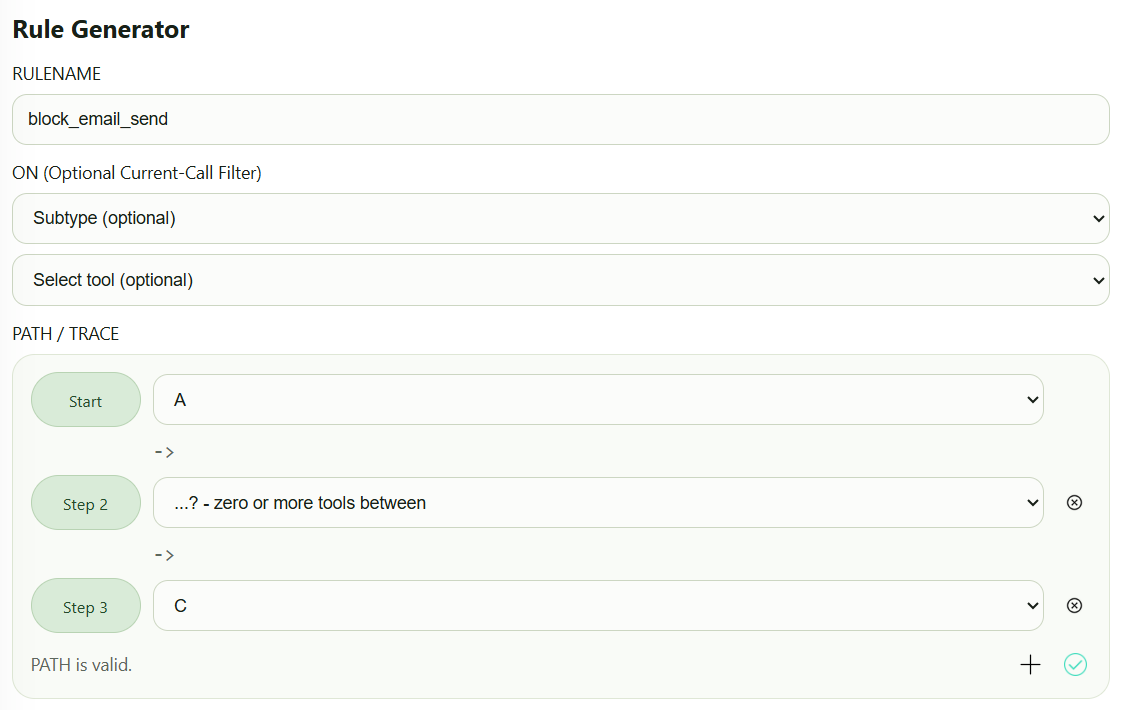
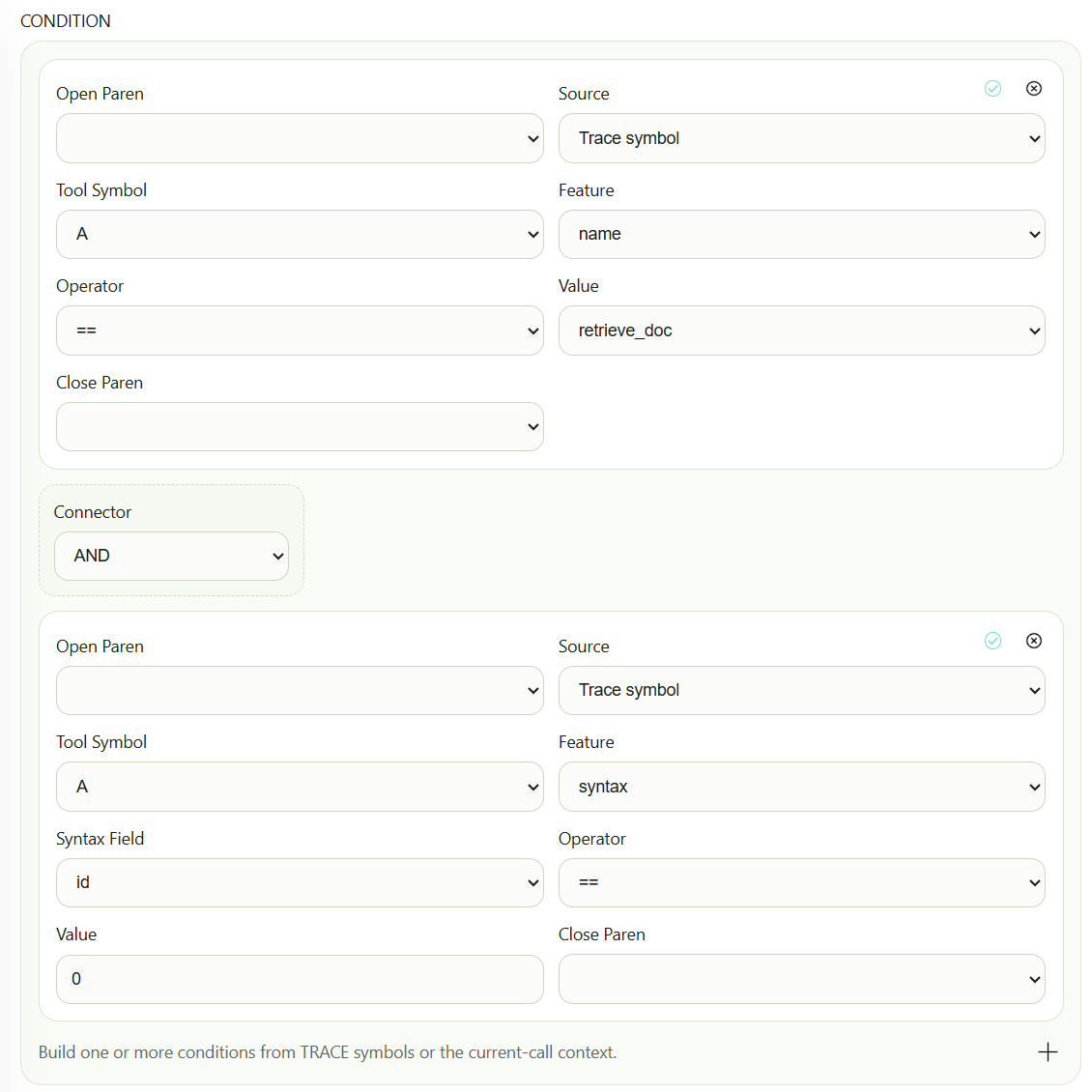
After setting up the PATH / TRACE, click the green checkmark at the bottom right to confirm. Next, bind A and C to specific tools and parameters. For A, the tool name is retrieve_doc, and the id parameter must equal 0. Add a conjunction rule as shown:
For C, the tool name is send_email_to, and the addr parameter should reject any email address other than admin@example.com. Add another conjunction rule:
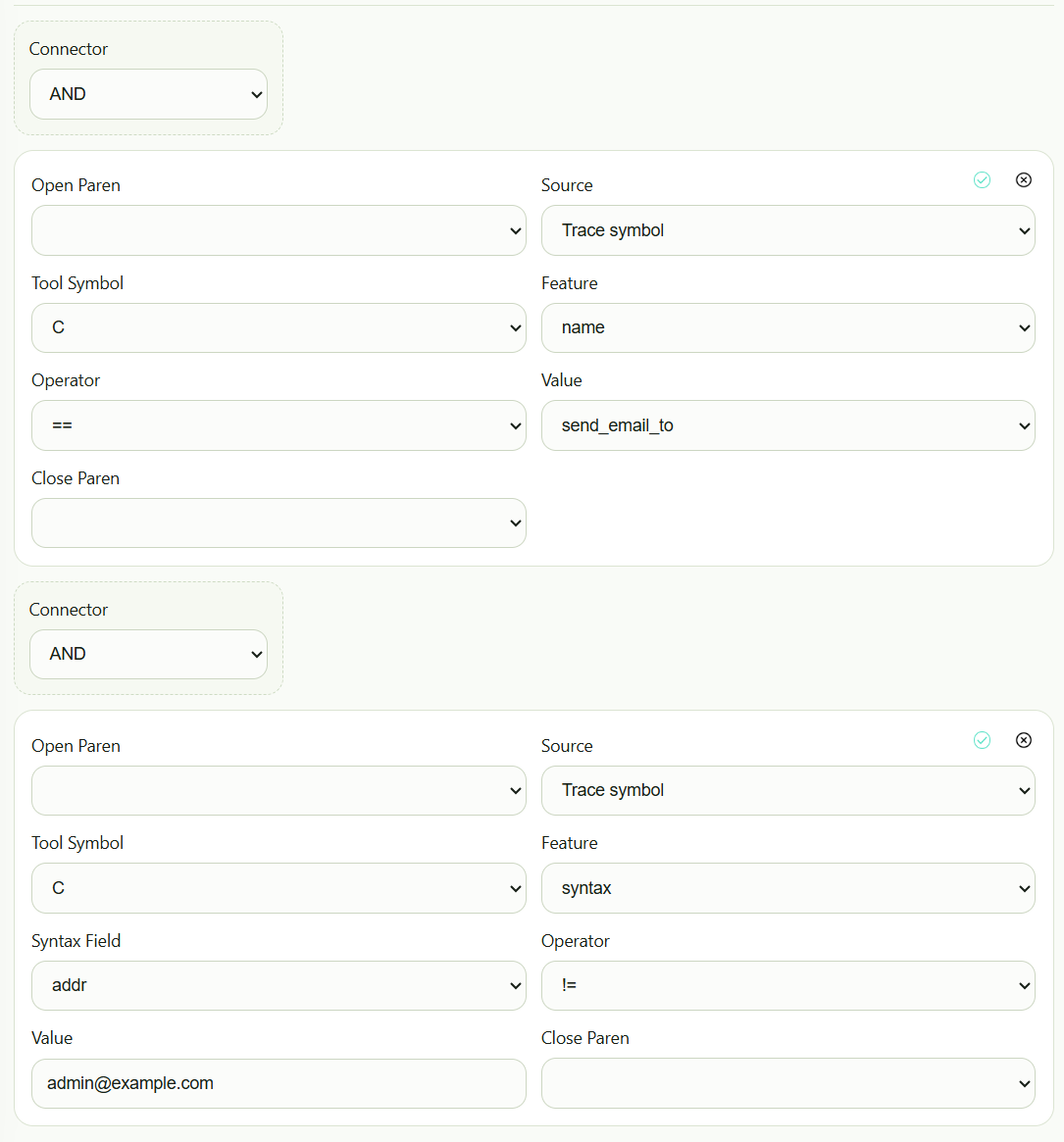
Remember to click the green checkmark at the top right after filling in each conjunction. Next, choose the action (ACTION) to take when the policy matches. Select DENY to block execution on match. You can also set severity, category, and reason — these help with later auditing:
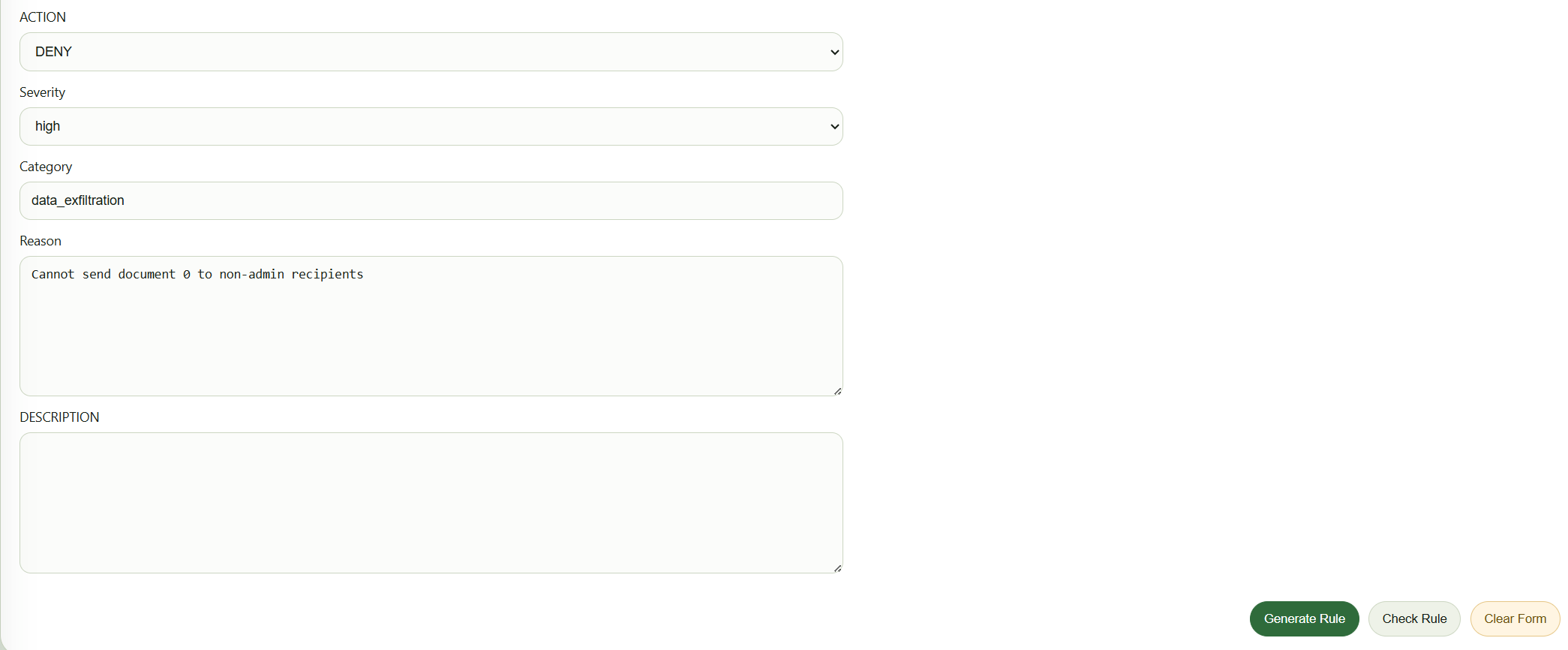
Notice that as you configure the policy interactively, the system generates a preview of the DSL in parallel:
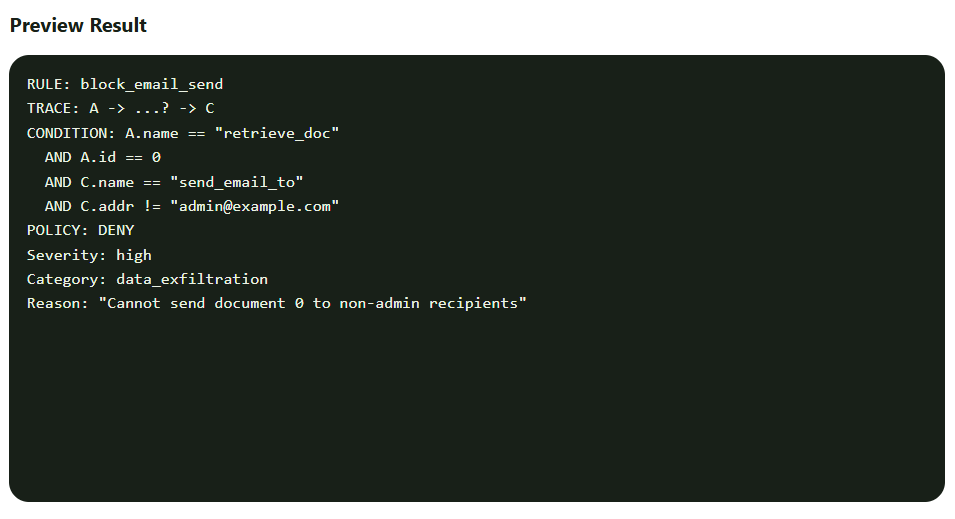
Once everything looks correct, click the Generate Rule button. The system will create the policy, but it won't take effect until you manually Publish it in the Rule List.